Creating a professional invoice should not require expensive accounting software, a complicated setup process, or an account that you only created because you need to send one document to a client. For freelancers, small businesses, independent contractors, service providers, and entrepreneurs, there are many situations where you simply need a clean document that contains the right information and can be downloaded as a PDF.
That is the idea behind SEDI Invoice, a free online document generator available at invoice.sedihub.com. The tool lets users create invoices, credit notes, and receipts directly in their browser without signing up. You can enter your business information, add client details, list products or services, apply taxes and discounts, include payment information, preview the document, and download a print-ready PDF.
For people who want a straightforward way to prepare business documents without committing to a larger accounting platform, an online invoice generator can be a practical option.
What Is SEDI Invoice?
SEDI Invoice is a browser-based tool for creating professional business documents. Instead of downloading desktop software or going through an account registration process, you can open the website and start preparing a document immediately.
The application supports three main document types:
-
Invoices
-
Credit notes
-
Receipts
The interface is designed around a simple workflow. You enter the information required for your document, review the result through a live preview, customize the document, and then export it as a PDF.
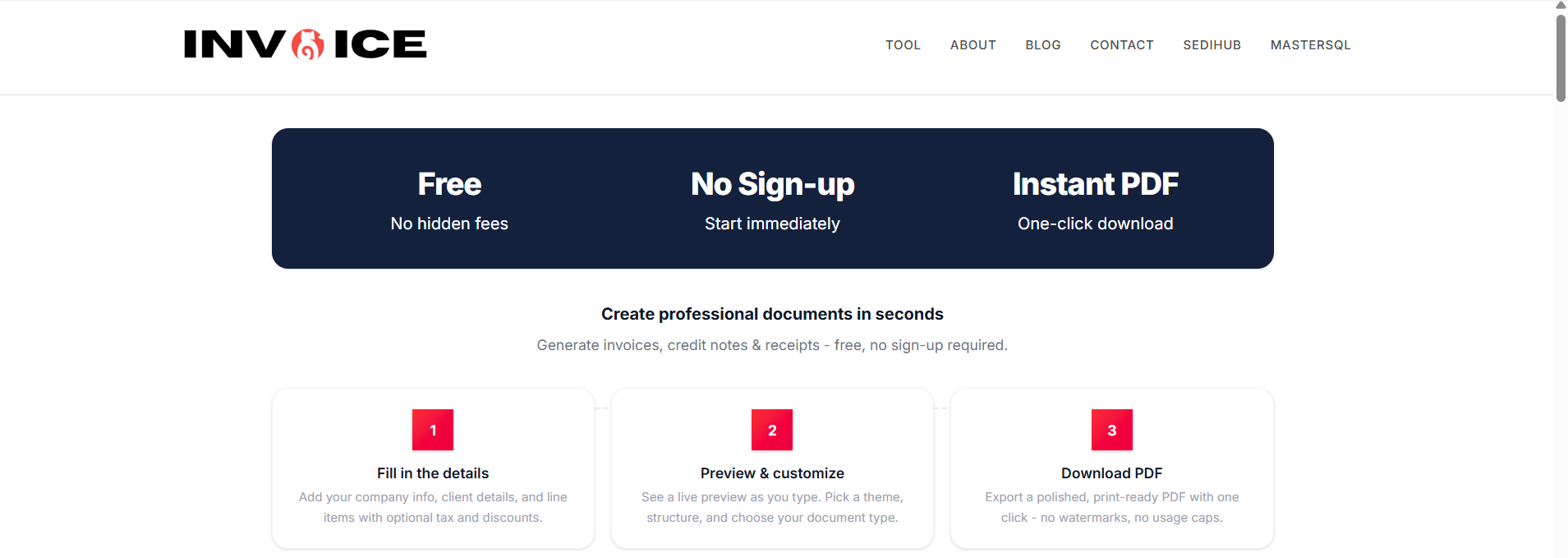
According to the website, there are no sign-up requirements, no credit card requirement, no watermarks, and no stated usage caps. The website also describes the PDF output as polished and print-ready.
This makes the tool particularly useful when you need to create a document quickly without adopting a complete bookkeeping or accounting system.
Why Use an Online Invoice Generator?
Invoices are an important part of running a business. They communicate what was sold or provided, who is responsible for payment, how much is owed, when payment is expected, and how the customer can complete the payment.
However, not every business needs a full accounting platform just to produce an invoice.
A freelancer may only need to invoice a few clients each month. A small service business may already manage its finances elsewhere but need a convenient way to create professional-looking documents. A new entrepreneur may want to send a first invoice before investing in more comprehensive business software.
In these situations, a focused invoice generator can reduce unnecessary steps.
Instead of opening a spreadsheet, manually formatting a document, checking calculations, converting the file to PDF, and repeating the process every time, you can use a dedicated form designed specifically for invoices and related documents.
The goal is not to replace accounting software when you need accounting software. Instead, a tool like SEDI Invoice provides a simpler option for creating the actual documents your customers receive.
Create an Invoice Without Creating an Account
One of the most noticeable features of SEDI Invoice is that you can start without registering for an account.
The homepage specifically states that users can generate invoices, credit notes, and receipts for free without signing up.
That can be useful when you need to create a document immediately.
For example, imagine that you have just completed a freelance project and your client asks for an invoice. You do not necessarily need a new subscription, a trial account, or another application installed on your computer. You can open the invoice generator, enter your information, add the project details, and generate the document.
The same approach can be useful for occasional users who do not create invoices frequently enough to justify maintaining another software account.
Add Your Business Information
A professional invoice should clearly identify the business or person issuing it.
SEDI Invoice provides fields for important company information, including:
-
Company name
-
Email address
-
Phone number
-
Business address
-
Tax ID or VAT number
-
Website
-
Company registration number
-
Company logo
The application supports PNG, JPG, and WebP logo uploads.
Including these details can make the resulting document more useful to your customer and easier to associate with your business.
For businesses that have a logo and established branding, adding the company logo can also give the document a more polished appearance.
Add Client Information
After entering your own business information, you can provide details about the customer receiving the document.
The invoice form includes fields for:
-
Client name
-
Client email
-
Client address
-
Client tax ID or VAT number
This allows the generated document to contain information identifying both parties involved in the transaction.
Keeping the issuer and recipient information clearly separated is especially useful when invoices are being used for business records.
Add Products and Services as Line Items
The core of an invoice is usually the list of products or services being billed.
SEDI Invoice includes a line-item section where you can add the items included in the transaction. The form is designed around adding individual items and their associated amounts.
This can work for many common scenarios, such as:
-
Website development
-
Graphic design
-
Consulting
-
Freelance writing
-
Marketing services
-
Digital products
-
Maintenance work
-
Repairs
-
Professional services
-
Physical products
Rather than creating a generic document from scratch, you can structure the invoice around the actual goods or services provided.
Support Taxes, Discounts, and Withholding
Invoices can become more complicated when taxes, discounts, or withholding amounts need to be represented.
SEDI Invoice includes fields for tax labels and withholding tax rates. The form also provides a global discount option that can be applied to the entire subtotal.
The tax label can be customized with terms such as VAT, GST, or Sales Tax, depending on the terminology relevant to the user's situation.
There is also a WHT rate field for withholding tax.
These features make the generator more flexible than a simple document containing only a name, description, and total.
However, users should always verify their local tax and invoicing requirements before relying on any generated document for regulatory purposes. Tax rules differ between countries, industries, and business structures. An invoice generator can help create the document, but it does not determine whether a particular tax treatment is legally appropriate for your business.
Choose Your Currency
Different businesses work with different currencies, especially freelancers and companies that serve international customers.
SEDI Invoice includes a currency field, with USD shown as the default currency in the current interface.
This allows the invoice to communicate the currency associated with the transaction instead of leaving the customer to guess whether an amount is in dollars, euros, pounds, pesos, or another currency.
When preparing an invoice, it is still important to select the currency that matches the actual agreement or transaction.
Add Shipping Information When Needed
Not every invoice involves physical products, but businesses that ship goods may need to include additional delivery information.
SEDI Invoice provides an optional shipping section with fields for:
-
Recipient name
-
Ship date
-
Shipping address
-
Carrier
-
Tracking number
-
Shipping cost
This makes the generator suitable for more than purely service-based invoices.
For example, a small online seller could include the shipping cost and carrier information alongside the products being billed. A service provider that does not need shipping information can simply leave that section unused.
Add Payment Terms and Payment Instructions
An invoice should tell the customer not only what they owe, but also how and when they are expected to pay.
SEDI Invoice provides fields for payment terms, including examples such as "Net 30" or "Due on receipt."
The form also includes payment instruction fields for information such as:
-
Bank name
-
Account number
-
IBAN
-
SWIFT/BIC
This can be helpful for businesses that accept bank transfers.
Providing payment instructions directly on the invoice can reduce unnecessary back-and-forth communication. Instead of sending a separate message explaining where the customer should send the payment, the relevant information can be included in the document itself.
Users should take care when entering financial information and should only include payment details they are comfortable providing to customers.
Track Important Invoice Details
The invoice form includes fields for invoice number, purchase order number, invoice date, due date, payment status, payment date, and amount already paid.
These fields provide useful context around the transaction.
For example, an invoice can contain a unique invoice number such as INV-001, while a purchase order number can be added when a customer uses a purchase-order-based purchasing process.
Payment status and payment date can also help communicate whether an amount has already been paid.
This information can be especially useful when an invoice is viewed later by the customer, business owner, bookkeeper, or another person responsible for handling the transaction.
See a Live Preview Before Downloading
One of the practical features of the application is its live preview.
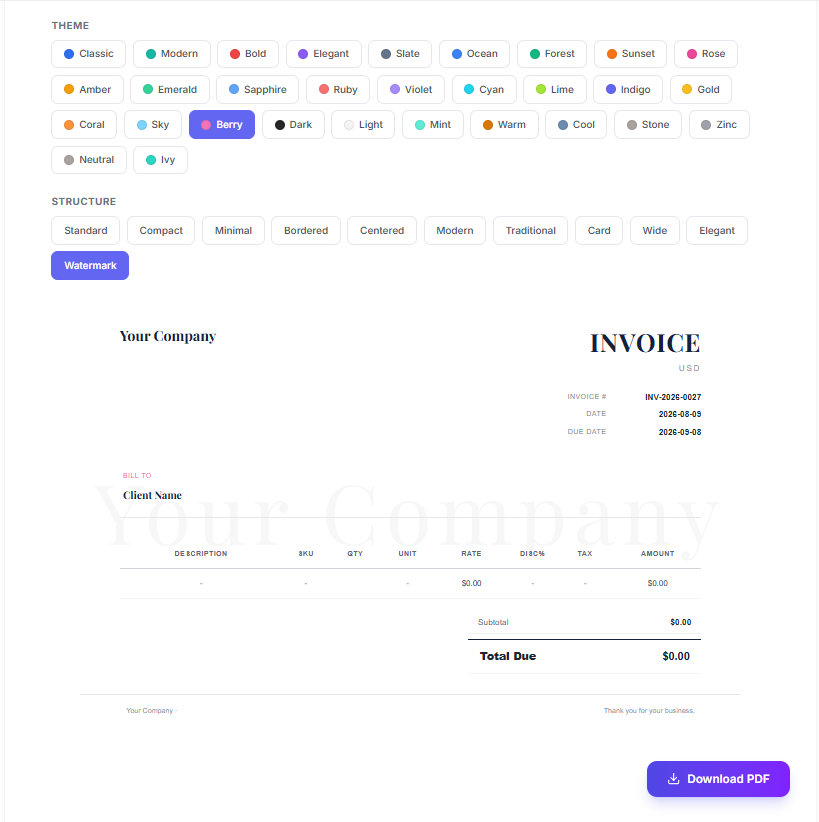
The website explains that the preview updates as information is entered, allowing users to see what the document will look like before downloading it.
This is useful because formatting problems are easier to correct before a document has been sent to a customer.
Instead of creating a document, downloading it, opening another application to inspect it, and then returning to make changes, users can review the document during the creation process.
The website also allows users to choose a theme and structure for the document.
Create Credit Notes and Receipts Too
Invoices are not the only documents businesses sometimes need.
A credit note can be useful when an adjustment needs to be documented, while a receipt can be used to acknowledge a payment.
SEDI Invoice provides dedicated options for Invoice, Credit Note, and Receipt. When a different document type is selected, the application automatically adjusts the relevant fields and preview.
This means users do not need to start with a generic blank document and manually redesign it for every type of business document.
Instead, the application provides separate document modes within the same interface.
Download a PDF With One Click
Once the document is complete, SEDI Invoice allows users to export it as a PDF.
The website describes the output as a polished, print-ready PDF and states that downloads do not include watermarks or stated usage caps.
PDF is a practical format for business documents because it helps preserve the layout when the document is opened or shared across different devices.
A generated invoice can be saved for your records and shared with a customer through the communication method you normally use.
Who Can Benefit From SEDI Invoice?
A free invoice generator can be useful for a wide range of users.
Freelancers
Freelancers often need to invoice clients for completed projects. A dedicated generator can make the process faster without requiring a full accounting platform.
Small Businesses
Small businesses may need professional invoices while keeping their administrative tools simple. The ability to include company information, tax details, payment terms, discounts, and shipping information provides flexibility.
Consultants and Service Providers
Consultants, developers, designers, writers, photographers, and other service professionals can use line items to describe the work being billed.
Online Sellers
Businesses selling physical products can take advantage of product line items and optional shipping information.
New Businesses
Entrepreneurs who are just starting can create business documents without first committing to a paid invoicing subscription.
Occasional Users
Some people only need an invoice generator occasionally. For these users, a no-sign-up tool can be more convenient than maintaining another account.
A Simple Alternative to Overcomplicated Invoicing Workflows
Business software can become complicated when you only need to accomplish one specific task.
A complete accounting platform can be valuable when you need features such as bookkeeping, expense tracking, financial reporting, payroll, inventory management, or automated accounting workflows.
But if your immediate requirement is simply to create a professional invoice, credit note, or receipt, a focused document generator can be a more straightforward starting point.
SEDI Invoice focuses on document creation rather than trying to present itself as an all-in-one accounting system.
That distinction is important.
The tool is designed to help you create the document. Your existing accounting, bookkeeping, payment, and business processes can remain separate if that is what works best for you.
How to Create an Invoice With SEDI Invoice
Creating a document takes place through a straightforward workflow.
Step 1: Choose the Document Type
Open SEDI Invoice and select whether you want to create an invoice, credit note, or receipt.
Step 2: Enter Your Business Information
Add your company name, contact information, address, tax information, registration details, and logo if applicable.
Step 3: Add Your Client
Enter the customer's name and relevant contact, address, and tax information.
Step 4: Enter Invoice Details
Add the invoice number, purchase order number if applicable, issue date, due date, payment status, and other relevant information.
Step 5: Add Line Items
Enter the products or services included in the transaction.
Step 6: Add Taxes or Discounts
Apply the appropriate tax label, withholding rate, or global discount where applicable.
Step 7: Add Payment Information
Enter payment terms and payment instructions if you want them displayed on the document.
Step 8: Review the Preview
Check the document carefully. Confirm that names, dates, amounts, addresses, tax information, and payment instructions are correct.
Step 9: Download the PDF
Once everything looks correct, download the generated PDF and save or share it as needed.
The website describes essentially this workflow in its own instructions: enter company and client details, add line items, review the live preview, and download the PDF.
What Makes a Good Invoice?
The software you use is only part of the process. A good invoice should also contain accurate and relevant information.
Depending on your business and local requirements, an invoice may need to include:
-
Your business name and contact details
-
Customer information
-
A unique invoice number
-
Invoice date
-
Payment due date
-
Description of goods or services
-
Quantities and prices
-
Applicable taxes
-
Discounts
-
Total amount due
-
Currency
-
Payment instructions
-
Relevant business or tax identification numbers
You should also review the final document before sending it.
Check the spelling of the customer's name, invoice number, dates, amounts, tax calculations, payment information, and any other details that could cause confusion.
For businesses operating under specific tax or invoicing regulations, consult the appropriate local authority or qualified professional to make sure your invoices meet the requirements applicable to your situation.
Is SEDI Invoice Really Free?
According to the current SEDI Invoice website, the service is free to use and does not require an account or credit card. The site also states that generated documents have no watermarks and that users can generate as many documents as needed.
Because online services can change over time, users should always refer to the current website for the latest information about features, availability, and terms.
Start Creating Your Invoice
If you need a straightforward way to create a professional invoice, credit note, or receipt, SEDI Invoice is worth trying.
You do not need to start by learning a complicated accounting system. You can open the tool, select the document type, enter the relevant information, review the live preview, and download the finished PDF.
For freelancers, small businesses, independent professionals, online sellers, and anyone who occasionally needs a business document, that simple workflow can remove unnecessary friction from an otherwise routine task.
Try SEDI Invoice: invoice.sedihub.com
Create your first invoice, credit note, or receipt directly in your browser and see whether the workflow fits your business.
Frequently Asked Questions
Is SEDI Invoice free?
Yes. The website currently states that SEDI Invoice is free, with no sign-up and no credit card required. It also states that documents have no watermarks and that there are no usage caps.
Do I need to create an account?
No. The website states that you can start creating documents without signing up.
Can I create receipts?
Yes. SEDI Invoice supports invoices, credit notes, and receipts through separate document options.
Can I create credit notes?
Yes. Credit notes are supported alongside invoices and receipts. The interface adjusts the available fields based on the selected document type.
Can I add my company logo?
Yes. The company information section supports logo uploads in PNG, JPG, and WebP formats.
Can I add taxes?
Yes. The invoice form includes a customizable tax label and a WHT rate field. Users should verify the correct tax treatment for their own jurisdiction and business.
Can I apply discounts?
Yes. The application includes a global discount option that can be applied to the entire subtotal.
Can I add shipping information?
Yes. Optional shipping fields include the recipient, ship date, shipping address, carrier, tracking number, and shipping cost.
Can I include payment instructions?
Yes. The current form includes fields for bank name, account number, IBAN, and SWIFT/BIC, as well as payment terms.
Can I preview the invoice before downloading it?
Yes. The website states that the preview updates in real time as you enter information.
Can I download the invoice as a PDF?
Yes. SEDI Invoice provides one-click PDF export and describes the result as a print-ready PDF.
Is an invoice generator a replacement for accounting software?
Not necessarily. An invoice generator is primarily designed to create business documents. If you need bookkeeping, financial reporting, expense management, payroll, inventory management, or other accounting functions, you may need additional software.
Does using an invoice generator guarantee tax compliance?
No. The generated document does not automatically determine whether your business is complying with local tax laws or invoicing regulations. Requirements vary by country and business type. Always verify applicable requirements before relying on an invoice for legal or tax purposes.
Final Thoughts
Creating business documents should be straightforward.
Whether you are sending your first freelance invoice, billing a long-term client, documenting a payment, issuing a credit note, or preparing an invoice for a product shipment, the basic requirement is the same: you need a document that clearly communicates the transaction and contains the information your customer needs.
SEDI Invoice takes a focused approach to that task. It provides a browser-based way to create invoices, credit notes, and receipts, while offering fields for company and client information, line items, taxes, discounts, shipping, payment terms, payment instructions, and other transaction details. The live preview lets you review the document before exporting it, and the website currently states that the service is free, requires no sign-up, adds no watermarks, and has no stated usage caps.
If you are looking for a simple online invoice generator rather than a complete accounting platform, give SEDI Invoice a try.
Create a free invoice online: invoice.sedihub.com