Signing a PDF should be a simple task. Yet something as basic as adding a signature to a document can sometimes mean creating an account, installing software, uploading a private file to a third-party service, or paying for a subscription before you can finish what should be a two-minute job.
For people who only need to sign a contract, add a date, write a name, or make a small change to a PDF, that process can feel unnecessarily complicated.
Signature by SEDI is a free browser-based tool designed to make PDF signing and basic text editing much simpler. You can open the website, upload a PDF, create or upload your signature, place it where you need it, add text if necessary, and download the finished document. The website states that the PDF is processed entirely in your browser, meaning the original document and signature are not sent to a server.
There is no account to create, no software to install, and no subscription required.
For anyone who occasionally needs to sign PDF documents, this provides a practical alternative to more complicated document management platforms.
What Is Signature by SEDI?
Signature is an online PDF signing and text editing tool developed by SEDI. It runs directly in a web browser and is designed around a straightforward workflow for adding signatures and text to existing PDF files.
The tool supports two primary actions: signing a PDF and adding text to it.
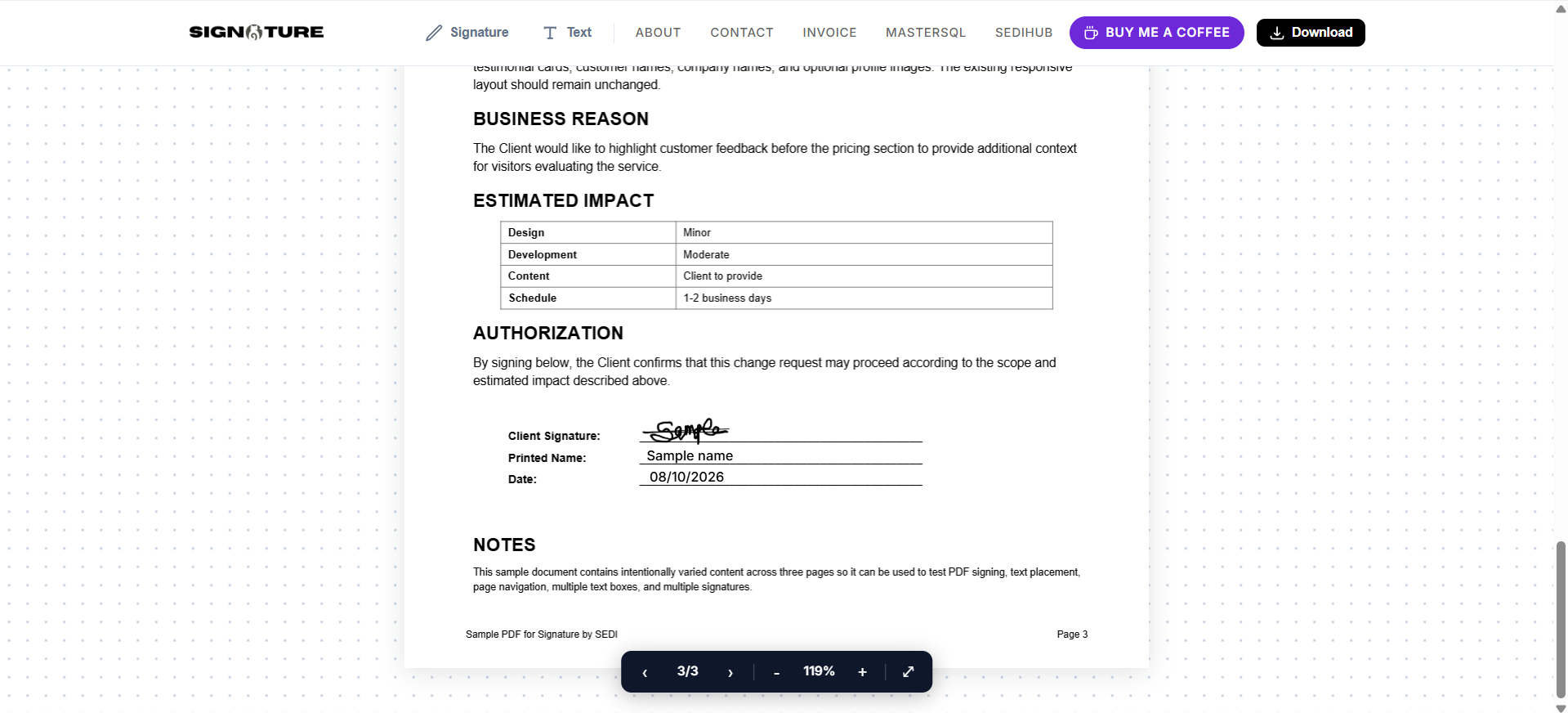
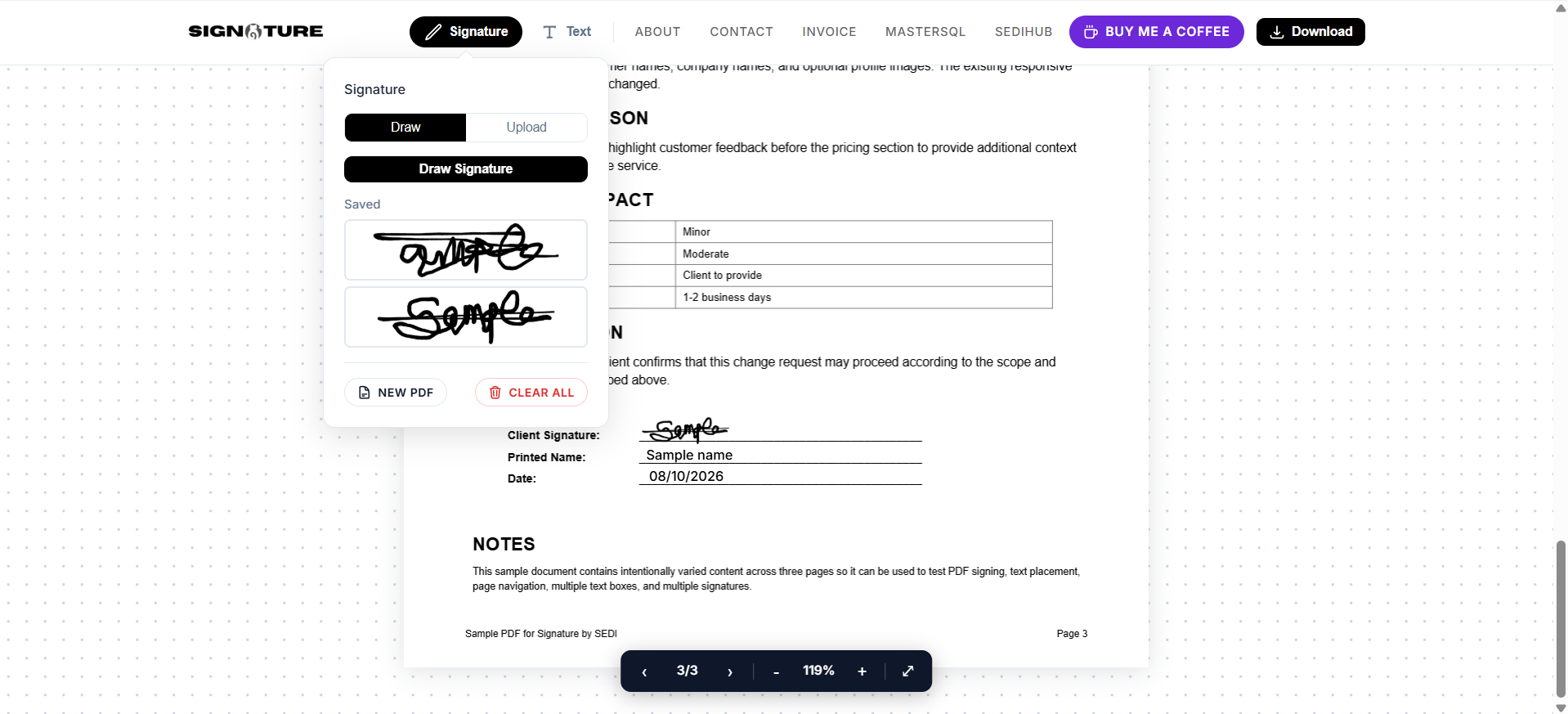
You can draw a signature using a mouse, trackpad, or touchscreen, or upload an existing signature image from your device. After creating your signature, you can position it directly on the PDF and resize it as needed. You can also add text fields for information such as names, dates, notes, or other details.
The tool also supports multi-page PDFs, allowing you to move between pages and place signatures or text where they are required.
This makes it useful for everyday documents that do not require a full document management system.
Why Sign PDFs Online?
PDF files are commonly used for contracts, agreements, forms, applications, invoices, quotations, business documents, and other paperwork.
The problem usually starts when the document needs to be signed.
You might receive a PDF through email, download it to your computer, and then realize that you need software capable of editing or signing it. If the software is not already installed, you may need to find another application or upload the document to an online service.
For an occasional task, that can be excessive.
An online PDF signing tool provides a simpler workflow. Instead of installing another program, you can use your browser to open the tool and complete the task.
This can be particularly useful when you are working from a different computer, using a phone, or simply do not want to maintain another piece of software.
No Account Required
One of the biggest advantages of Signature is the lack of registration.
The website states that there is no sign-up, no email requirement, and no payment required to use the tool. It also states that there are no daily limits and no watermark on downloaded files.
That makes the tool convenient for users who do not regularly need PDF software.
For example, imagine that a company sends you a contract that needs to be signed and returned. Instead of creating an account with a document signing service that you may never use again, you can open Signature, complete the document, download it, and send it back.
The same approach works for school forms, applications, agreements, authorization documents, and other PDFs that require a signature.
Your PDF Stays on Your Device
Privacy is an important consideration whenever documents are handled online.
A PDF can contain names, addresses, financial information, contracts, business information, identification details, or other private content. Uploading such a file to an external server may not be something you want to do.
Signature takes a different approach.
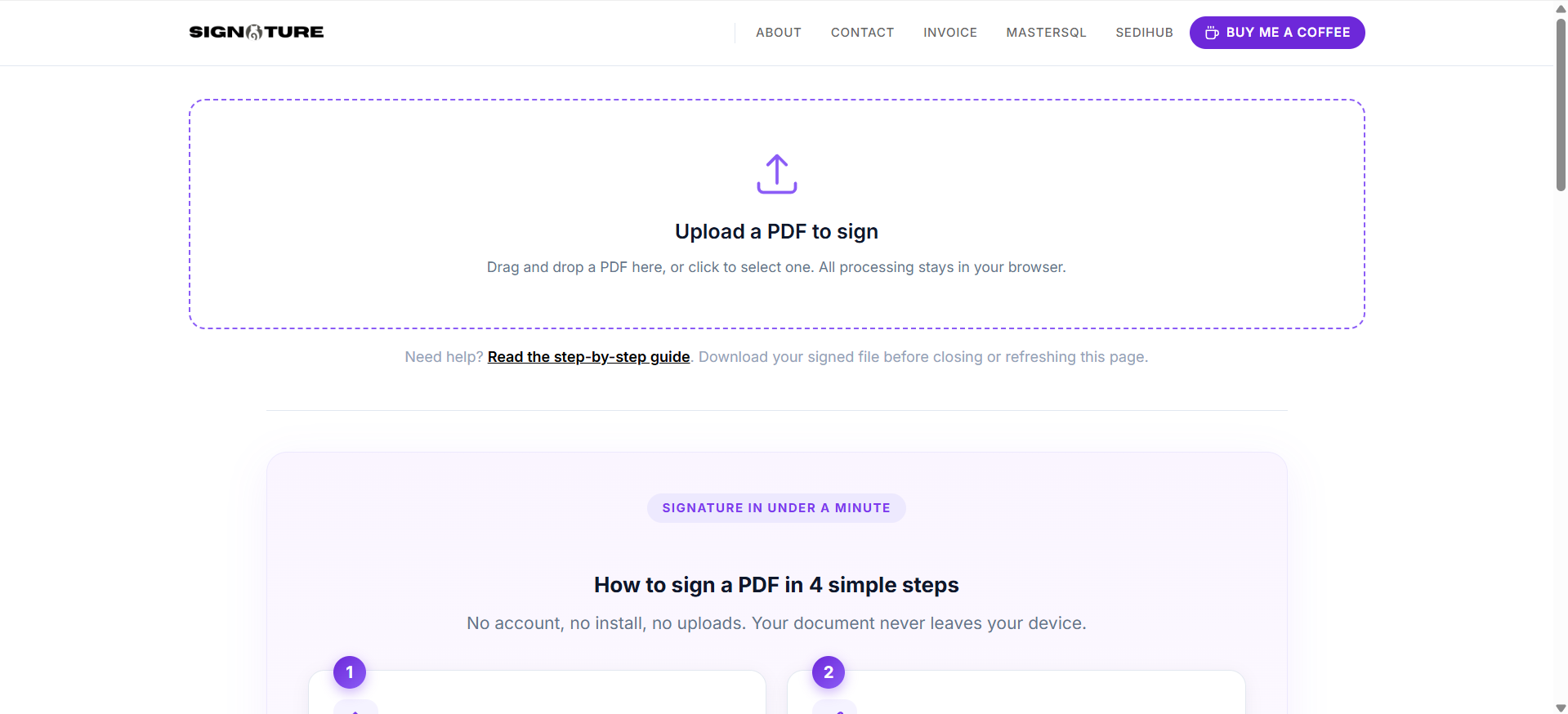
According to the website, the PDF is processed entirely on your device through your browser. The original PDF and your signature are not sent to a server, and the data is cleared when the browser tab is closed.
This means you can use the tool without sending the document to a remote PDF processing service.
The privacy model is particularly useful for people who want a quick way to sign documents while keeping the files on their own device.
Of course, users should still follow their own organization's privacy and security policies when handling sensitive documents.
Draw Your Signature With a Mouse, Trackpad, or Finger
You do not need a special digital pen or signature device.
Signature includes a drawing interface that lets you create a signature using a mouse, trackpad, or touchscreen.
On a desktop computer, you can use a mouse or trackpad. On a phone or tablet, you can use your finger.
This makes the process accessible across different devices.
You can simply draw your signature, review it, and place it on the PDF.
If you already have a digital signature image, you do not have to draw it again.
Upload an Existing Signature Image
Signature also allows users to upload an existing signature image.
The website recommends using a PNG file with a transparent background because it overlays more cleanly on a PDF.
This can be useful if you already have a scanned or digitally created version of your handwritten signature.
A transparent background helps prevent the signature from appearing inside a visible white box. Instead, the signature can sit naturally on top of the document.
Once uploaded, the signature can be positioned and resized on the page.
Add Text Directly to a PDF
Signing is not the only thing the tool can do.
Signature includes a text tool that lets you place text directly onto a PDF. You can choose a font family, adjust the font size, apply bold or italic formatting, and select a text color. The available text size ranges from 8 pt to 72 pt.
This is useful when a PDF needs a small amount of additional information.
For example, you might need to add:
-
Your name
-
A date
-
A reference number
-
A short note
-
Contact information
-
A title
-
A missing field
-
Additional instructions
Instead of opening the PDF in a full document editing application, you can add the required text directly through the browser.
Position Your Signature Exactly Where It Belongs
A signature is only useful if it appears in the correct location.
After creating or uploading your signature, you can drag it to the appropriate area of the page. You can also resize the element so that it fits the available signature line.
This is helpful for documents that already have a designated signing area.
You can open the PDF, locate the signature field, place your signature over it, and review the result before downloading.
The same positioning controls apply to added text.
Sign Multi-Page PDF Documents
Not every document fits on a single page.
Contracts, agreements, applications, business proposals, and other documents can contain several pages. Signature supports multi-page PDFs and provides page controls that allow you to move between pages in the preview.
This means you can work with a longer document without having to split it into individual files.
You can navigate through the pages, identify the locations that require signatures or text, and add the appropriate elements where needed.
The website also states that multiple signatures and text boxes can be added to the same page.
Add Multiple Signatures and Text Boxes
Some documents require more than one signature.
A contract might need signatures from two parties. An approval form might require several people to sign. A business document may contain different areas for signatures, dates, and notes.
Signature supports multiple signatures and text boxes within the same PDF.
This makes it possible to complete a document without repeatedly opening and editing the file.
You can place each signature where it belongs and add supporting information such as names or dates.
Works on Phones and Tablets
You do not necessarily need a desktop computer to sign a PDF.
The Signature website is designed to work on smaller screens and supports touch input. The site specifically mentions using Safari on iOS or Chrome on Android to sign documents using a finger.
This can be convenient when a document arrives while you are away from your computer.
For example, if someone sends you a form that needs to be signed quickly, you can open it from your phone, draw your signature on the screen, position it on the document, and download the completed PDF.
The ability to use a phone also makes the tool useful for people who do not have access to desktop PDF software.
Download the Finished PDF
Once the document is complete, you can download the signed version directly to your device.
The website states that the signature is written into the PDF and that the finished file can then be saved for storage or shared through email and other methods.
This keeps the final step simple.
You do not need to transfer the document to another application simply to export it.
Before closing the browser tab, however, make sure you have downloaded the completed file. The website specifically advises users to download their signed document before closing or refreshing the page.
What Happens to the Original PDF?
When you add a signature or text, the original PDF content is preserved.
The website explains that the signature and text are placed on top of the existing content, while the original pages, layout, and quality are preserved. Only the elements you add are embedded into the resulting document.
This is useful when you are working with an existing form or contract and do not want to rebuild the document.
You are essentially adding the information required to complete the document rather than redesigning the original file.
Who Can Use an Online PDF Signing Tool?
A simple PDF signing tool can be useful for many different people.
Freelancers
Freelancers frequently receive contracts, agreements, project documents, and forms that require a signature.
A browser-based tool provides a quick way to complete these documents without installing additional software.
Small Business Owners
Small businesses may need to sign supplier agreements, service contracts, quotations, forms, and other business documents.
For occasional signing tasks, a focused PDF tool can be easier to use than a larger document management platform.
Students
Students may receive applications, permission forms, internship documents, school forms, and other PDFs that require signatures or additional information.
A phone-friendly tool can be particularly convenient in these situations.
Remote Workers
People working remotely often receive documents electronically.
Being able to sign a PDF from a browser means you can complete paperwork even when you are working from a different computer.
Job Applicants
Some companies still send employment forms, agreements, or other documents as PDFs.
A browser-based signing tool can make it easier to complete and return these documents without specialized software.
Anyone Who Occasionally Signs PDFs
You do not have to be a business owner to benefit from a PDF signing tool.
If you only need to sign a document a few times a year, installing a dedicated application or maintaining another subscription may not make sense.
A Simple Four-Step PDF Signing Process
Signature keeps the workflow straightforward.
1. Upload Your PDF
Open the Signature website and drag your PDF into the upload area or select it from your device. The first page will appear in the browser preview.
2. Create or Upload Your Signature
Draw your signature using a mouse, trackpad, or finger. Alternatively, upload an existing signature image.
3. Position the Signature
Drag the signature to the correct location on the document. Resize it if necessary. You can also add text fields for names, dates, or notes.
4. Download the Completed PDF
Review the document and download the finished PDF to your device.
The entire workflow is designed to be completed quickly, and the website describes the process as taking about a minute for a typical document.
Is Signature Really Free?
According to the current website, Signature is free to use.
The site states that there is no account, no cost, no daily limit, no watermark, and no paid tier or subscription required to access its features.
This makes it different from services that limit PDF signing behind account registration or paid plans.
Because online services can change over time, users should always check the current website for the latest information about available features and terms.
Is It a Legally Binding Electronic Signature?
This is an important distinction.
Adding a visual signature to a PDF is not automatically the same thing as using a specialized electronic signature service designed to provide identity verification, audit trails, certificates, or other compliance features.
Signature is designed primarily to let users place a signature and text onto a PDF.
Whether a particular electronic signature is legally valid depends on factors such as the country, type of document, parties involved, and applicable laws or regulations.
If you are signing an important legal, financial, employment, or regulated document, make sure the signing method you use satisfies the requirements applicable to that document.
For everyday documents where a visual signature is appropriate, a simple PDF signing tool can be a convenient solution.
What About Large PDF Files?
The website does not impose a fixed file-size limit. However, very large PDFs can require more memory from the browser, meaning performance can depend on the device being used.
For normal business documents, contracts, forms, and similar files, the browser-based approach can be convenient.
If you are working with an unusually large PDF, a device with sufficient available memory may provide a better experience.
A More Private Way to Handle Everyday PDF Signing
The most notable aspect of Signature is not simply that it lets you draw a signature.
Many tools can do that.
The more interesting part is how the application handles the document.
By processing the PDF directly in the browser instead of sending it to a remote server, Signature provides an approach that can be useful for people who prefer to keep their documents on their own devices. The website states that files and signatures are not sent to a server and that data is cleared when the tab is closed.
For users who are cautious about uploading documents containing private information, this can be an important consideration.
It also means you can use the tool without handing over your email address simply to sign a PDF.
When a Simple Tool Is Better Than a Large Platform
There are many sophisticated electronic document platforms available today. They can be excellent choices for businesses that need advanced workflows, user management, authentication, audit trails, automated reminders, document storage, or team collaboration.
But those features are not necessary for every situation.
Sometimes you simply have a PDF that needs a signature.
You may not need a dashboard, subscription, account system, or document library. You may just want to finish the document and move on with your day.
That is where a focused tool like Signature can make sense.
It concentrates on the specific task of adding signatures and text to PDFs while keeping the process accessible from a normal web browser.
Final Thoughts
Signing a PDF should not have to be complicated.
For a document that simply needs a signature, date, name, or short note, installing specialized software or creating an account with another service can add unnecessary steps.
Signature by SEDI offers a simpler alternative. It is a free browser-based PDF signing and text editing tool that lets you draw or upload a signature, position it on a document, add text, work with multi-page PDFs, use multiple signatures and text boxes, and download the completed file. The website also states that processing takes place locally in the browser, with the PDF and signature remaining on the user's device rather than being uploaded to a server.
It can be useful for freelancers, businesses, students, remote workers, job applicants, and anyone who occasionally needs to sign a PDF.
There is no account to create, no software to install, and no subscription required according to the current website.
If you have a PDF waiting to be signed, you can try the tool directly:
Sign and edit a PDF online with Signature: https://signature.sedihub.com/
Upload your document, add your signature or text, review the result, and download the completed PDF when you are finished.
Frequently Asked Questions
Can I sign a PDF without installing software?
Yes. Signature runs in your browser, so you can upload and edit a PDF without installing a dedicated PDF application.
Does Signature require an account?
No. The website states that no account, email address, or payment is required.
Are my PDF files uploaded to a server?
According to the website, no. PDF processing takes place entirely on your device, and the document is not sent to a server.
Can I draw my signature?
Yes. You can draw a signature using a mouse, trackpad, or touchscreen.
Can I upload my signature?
Yes. You can upload an existing signature image. A transparent PNG is recommended for the cleanest result.
Can I add text to a PDF?
Yes. The text tool supports font selection, font sizing, bold, italic, and color options.
Can I sign a multi-page PDF?
Yes. Signature supports multi-page PDFs and provides controls for navigating between pages.
Can I add multiple signatures?
Yes. You can add multiple signatures and text boxes to a document.
Can I use Signature on my phone?
Yes. The website is designed to work on phones and tablets, and the signature pad supports touch input.
Does the downloaded PDF have a watermark?
The website states that downloaded files do not contain a watermark.
Is there a daily usage limit?
The website currently states that there is no daily limit.
Do I need to download the signed document before closing the page?
Yes. Because the document is processed locally in the browser, you should download the completed PDF before closing or refreshing the page.
Sign and edit a PDF online with Signature: https://signature.sedihub.com/